


From a saved stop to the next door
Check the address, open directions and record what happened after the visit.
Select the next address
Open your preferred navigator
Return and mark the visit




One driving leg at a time
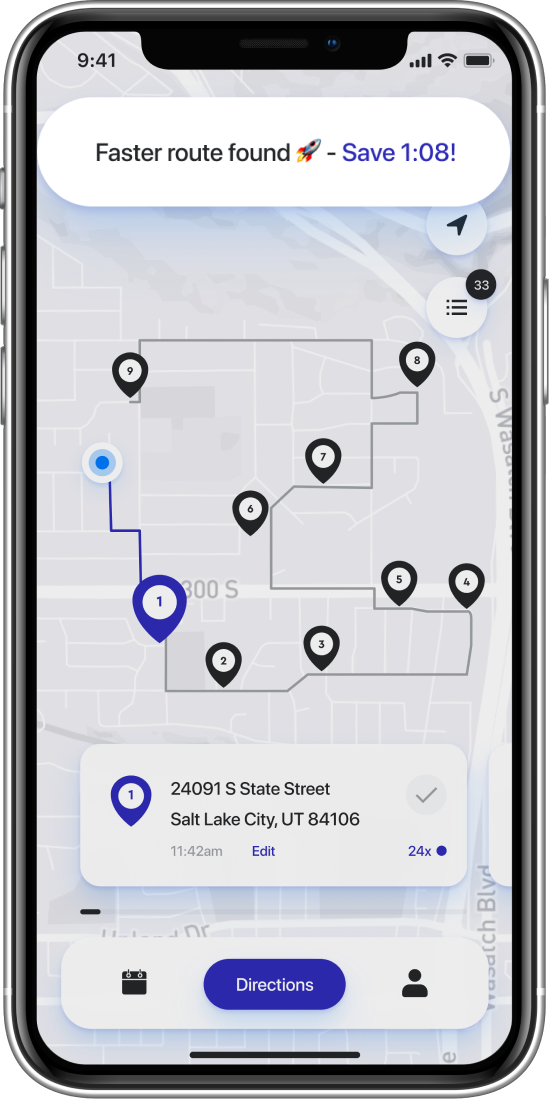
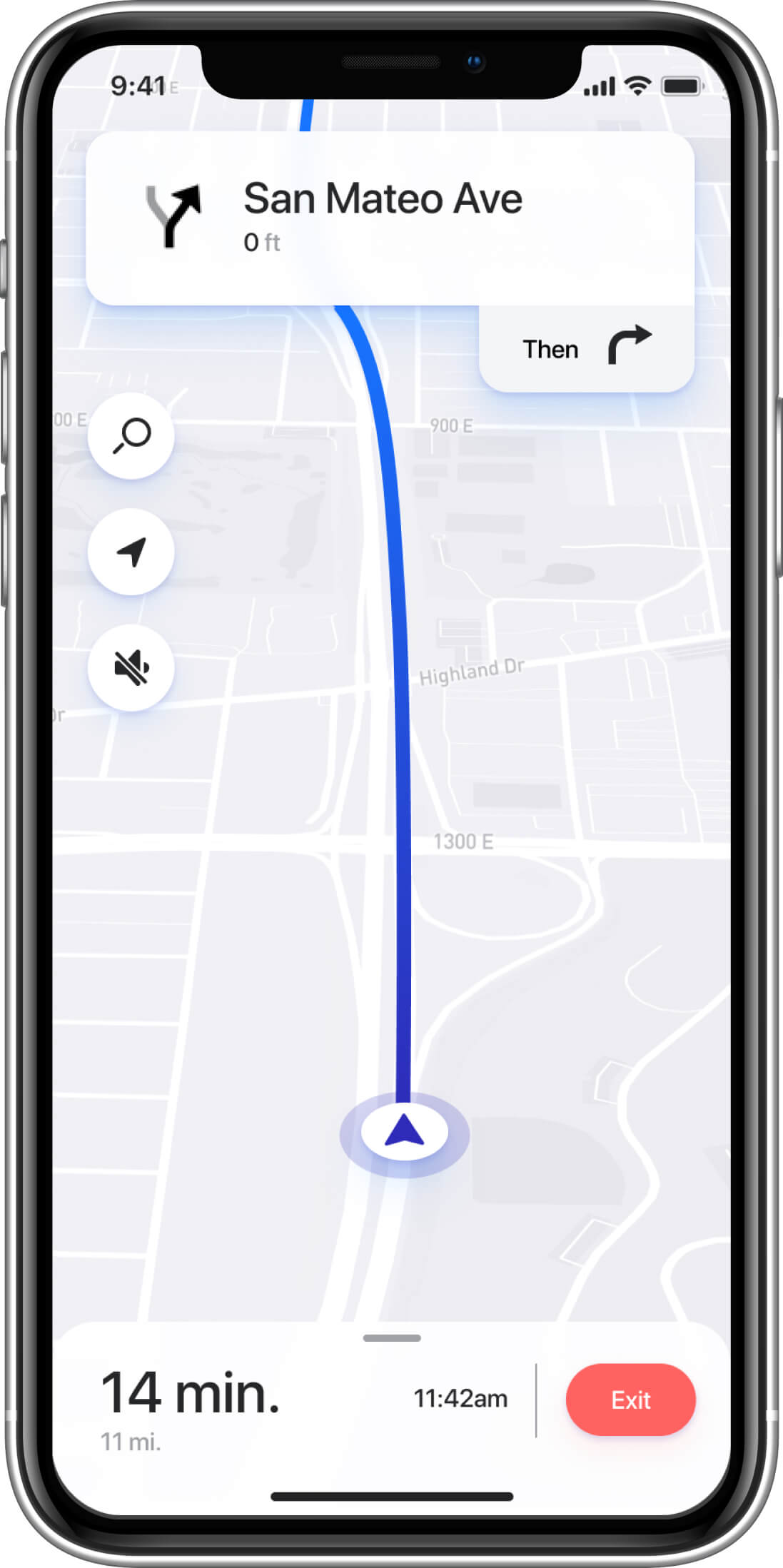
On a property tour, open the next listing in your external navigation app. The other addresses stay in Woope. After the showing, return to the route and record the visit outcome before moving on. Read the guide.



During an active route
Choose your navigator
Use an available navigation app on your iPhone. You can choose a default in Route & navigation settings.
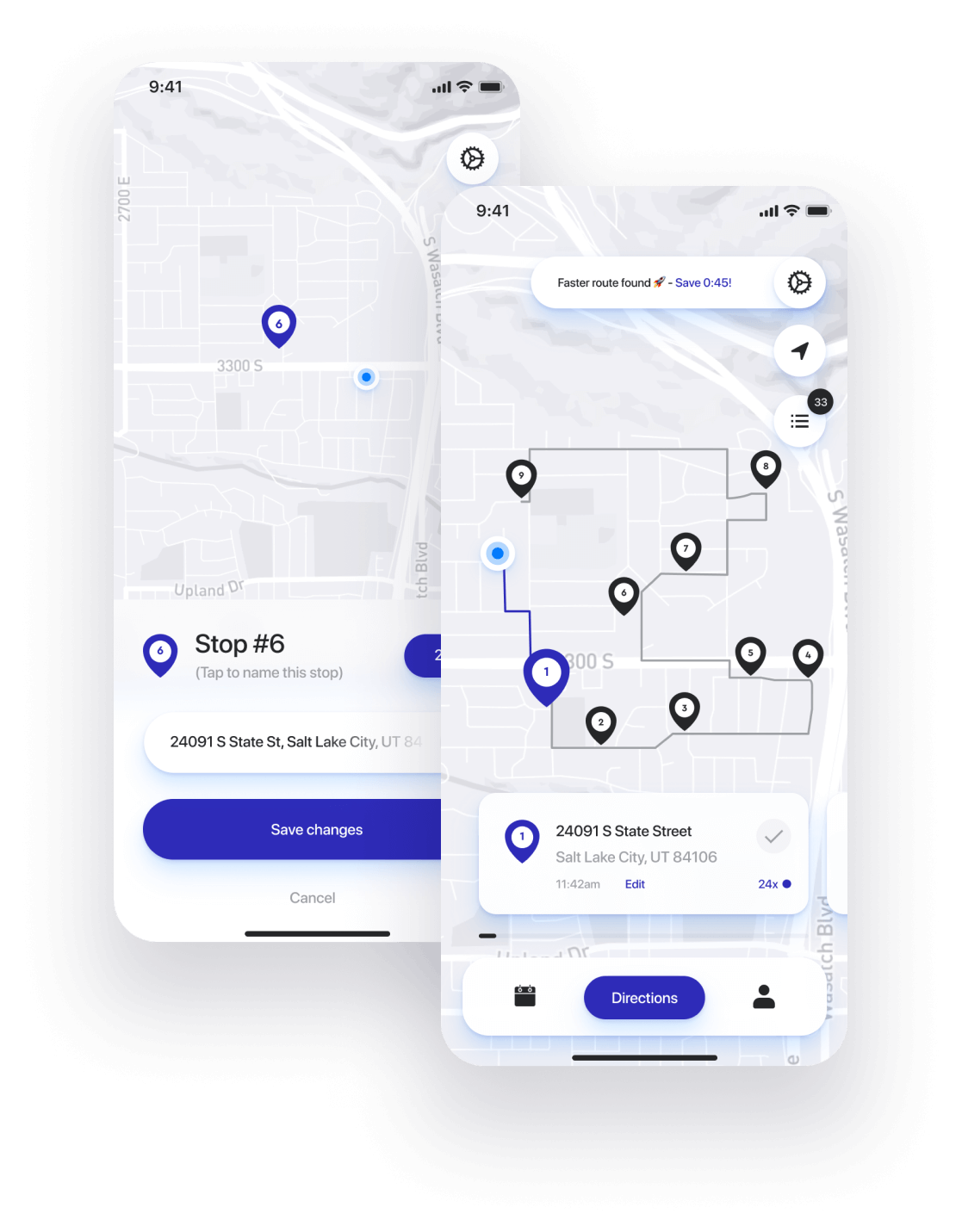

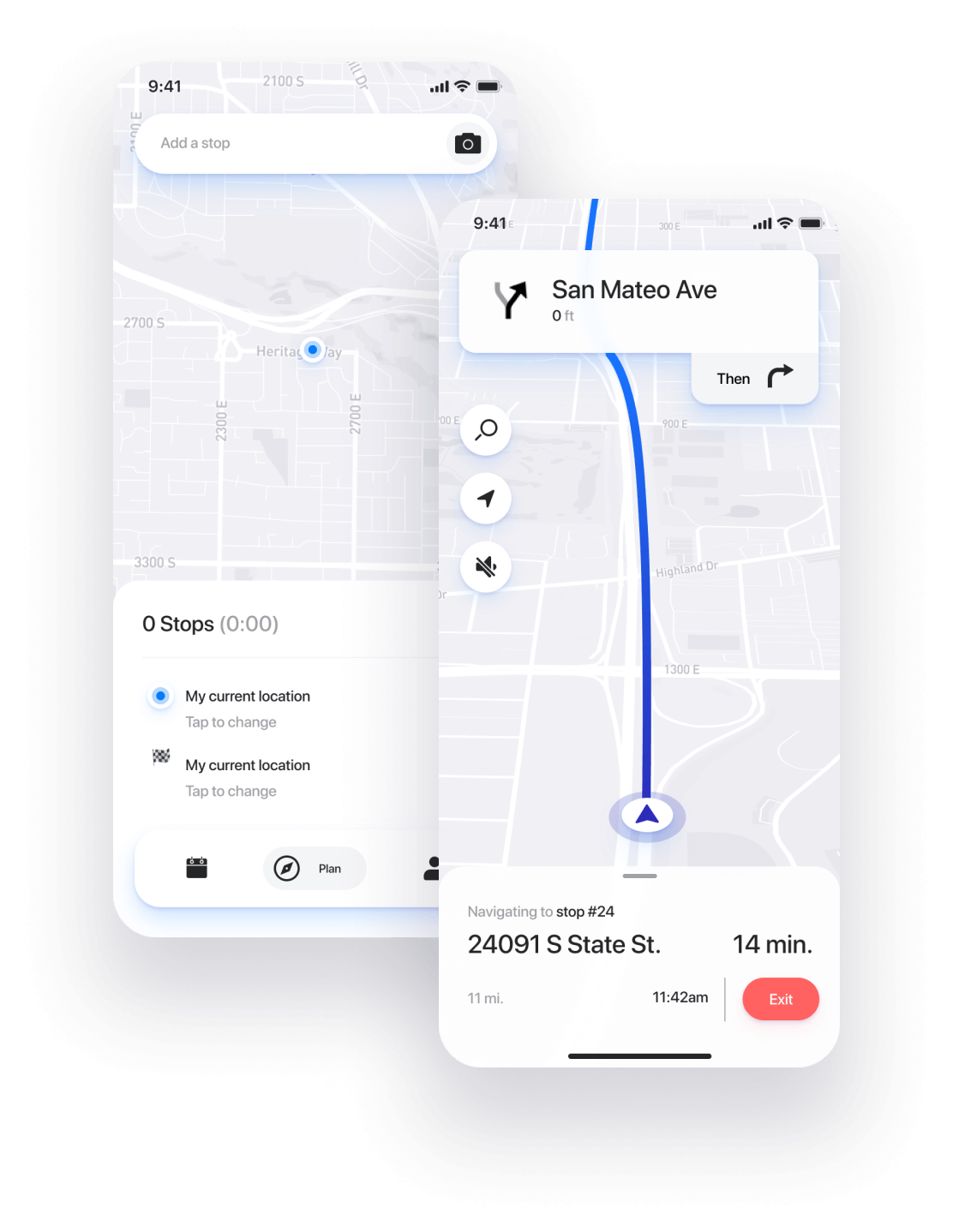
Read the arrival note
The navigator takes you to the address. Open the stop in Woope for the entrance, meeting point or parking note.





See who is still waiting
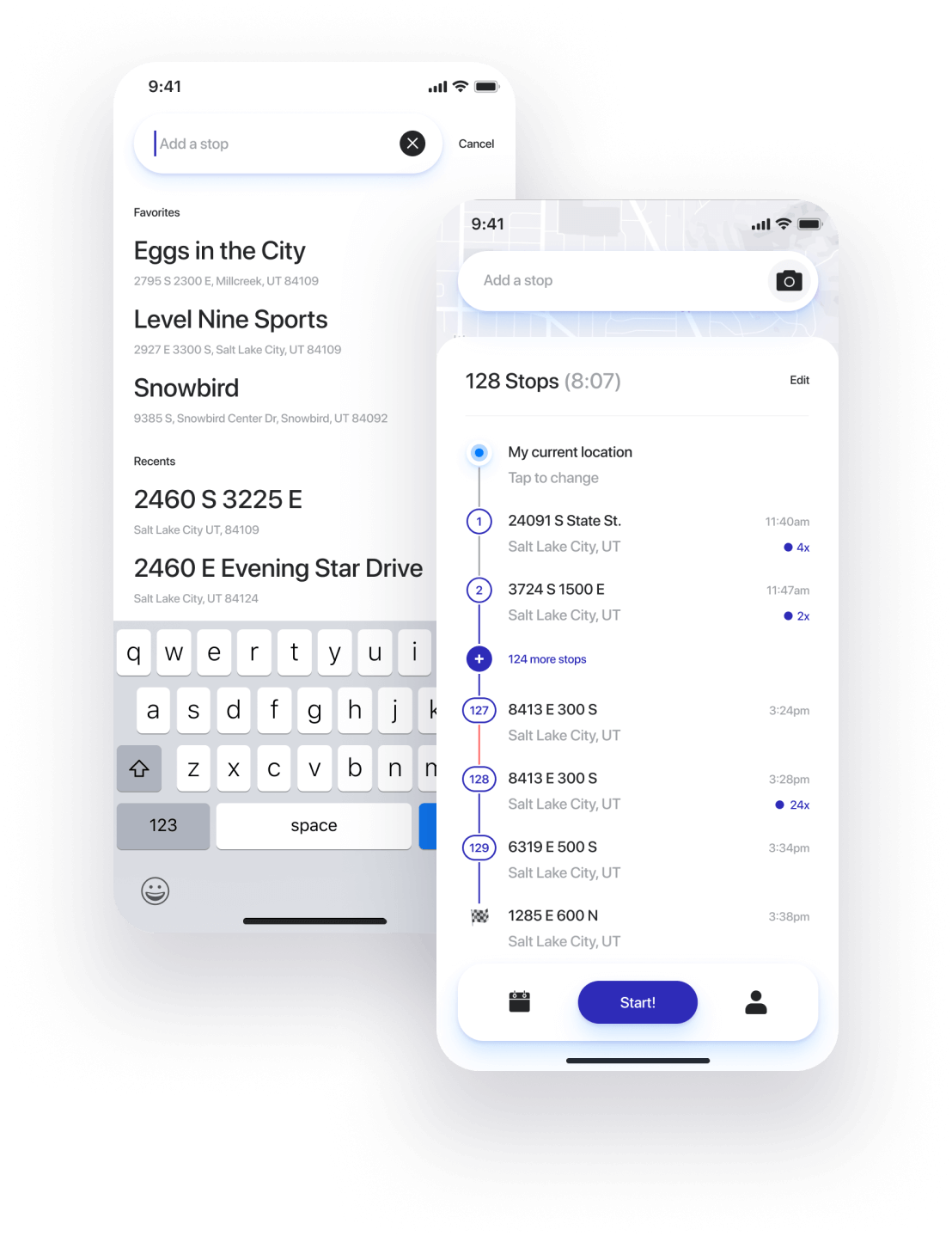
Mark a completed visit or skip a stop when a client reschedules. Check the remaining stops before setting off again.



Between visits
Real estate
Start at the condo, visit the townhouse and keep the bungalow for the buyer’s confirmed final showing.
Home service
The first home needs a hinge measured. Collect the matching part on the way to the second call.
Flower shops
Drop off a birthday bouquet, take the table flowers to a café and get back to the shop by 10:25.
Common questions
Getting from one stop to the next.
Where do driving directions open?
Woope sends the selected stop to a navigation app on your iPhone. Apple Maps and other supported installed apps can appear in the chooser.
Does opening directions complete the visit?
The stop stays on your work list until you update its outcome. Return to Woope after the visit.
Can I use the same navigator each time?
Choose your preferred available app in Route & navigation settings.
What happens when a client is absent?
Skip the stop, keep the remaining visits in the route and arrange a return with the client if needed.