
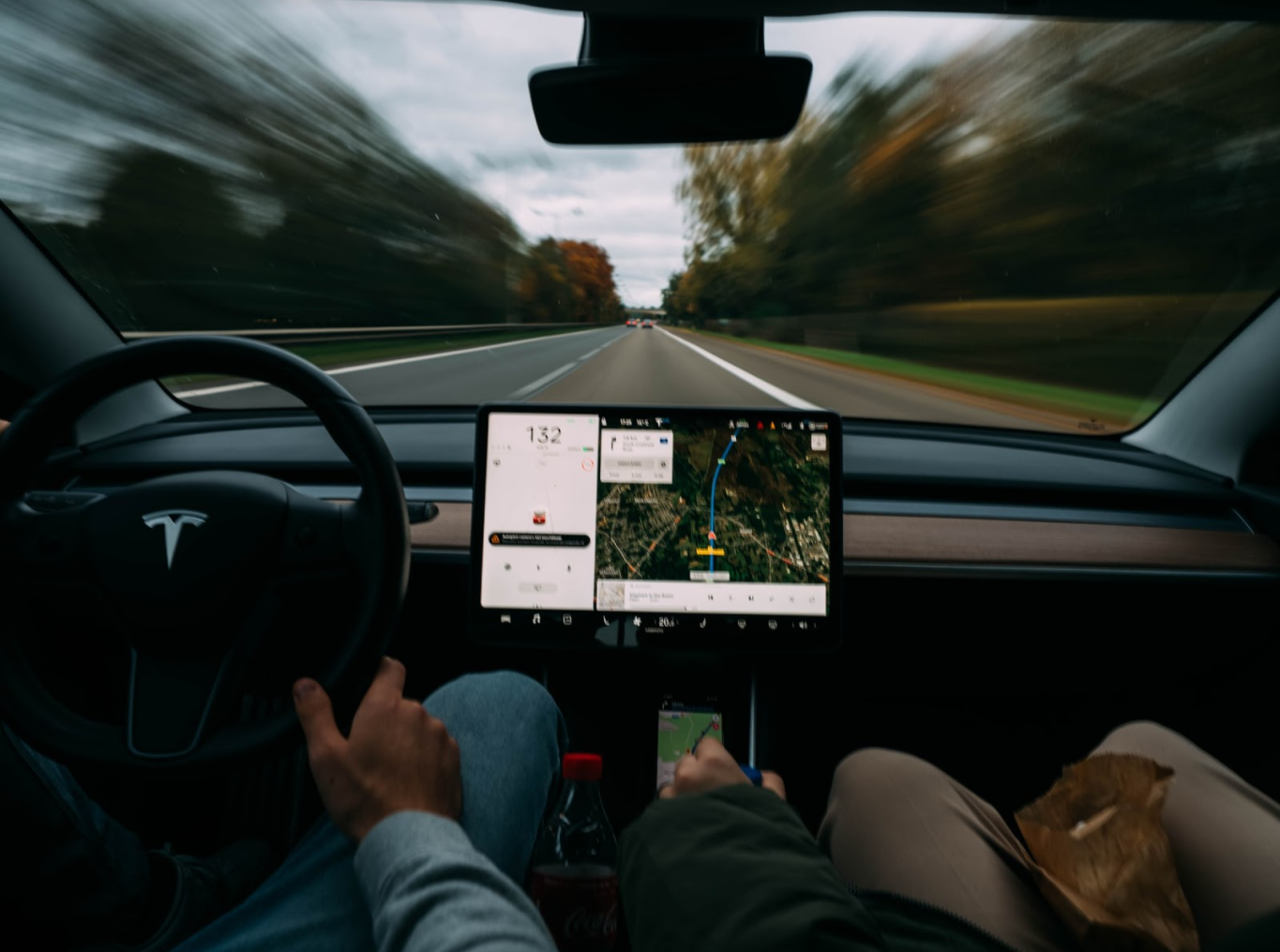
Woope keeps the work route. When you tap Navigate for a stop, the selected maps app handles the drive to that address. On a showing tour, the driver can follow directions to one listing while the agent keeps the two remaining listings in the plan.
Check the destination before the handoff
Open the stop and read the street number, town and notes. Select your preferred external navigator from the choices available on your device. When it opens, make sure its destination is the property you meant to visit, especially if two towns share a street name.
Use the work note at arrival
Directions can take you to a building while the customer is waiting at a side entrance. Reopen the Woope stop for its parking or entry note. If the map pin and the visitor entrance differ, confirm the meeting point with the customer.
Record the result in Woope
Finishing directions only means that navigation ended. After the visit, go back to the route and mark the work complete, or skip the stop if it fell through. Select the next address there so the remaining list stays accurate.