
From an address to a saved stop
Start with the address the client gave you. Check the result before it joins the day’s list.
Read or dictate the address
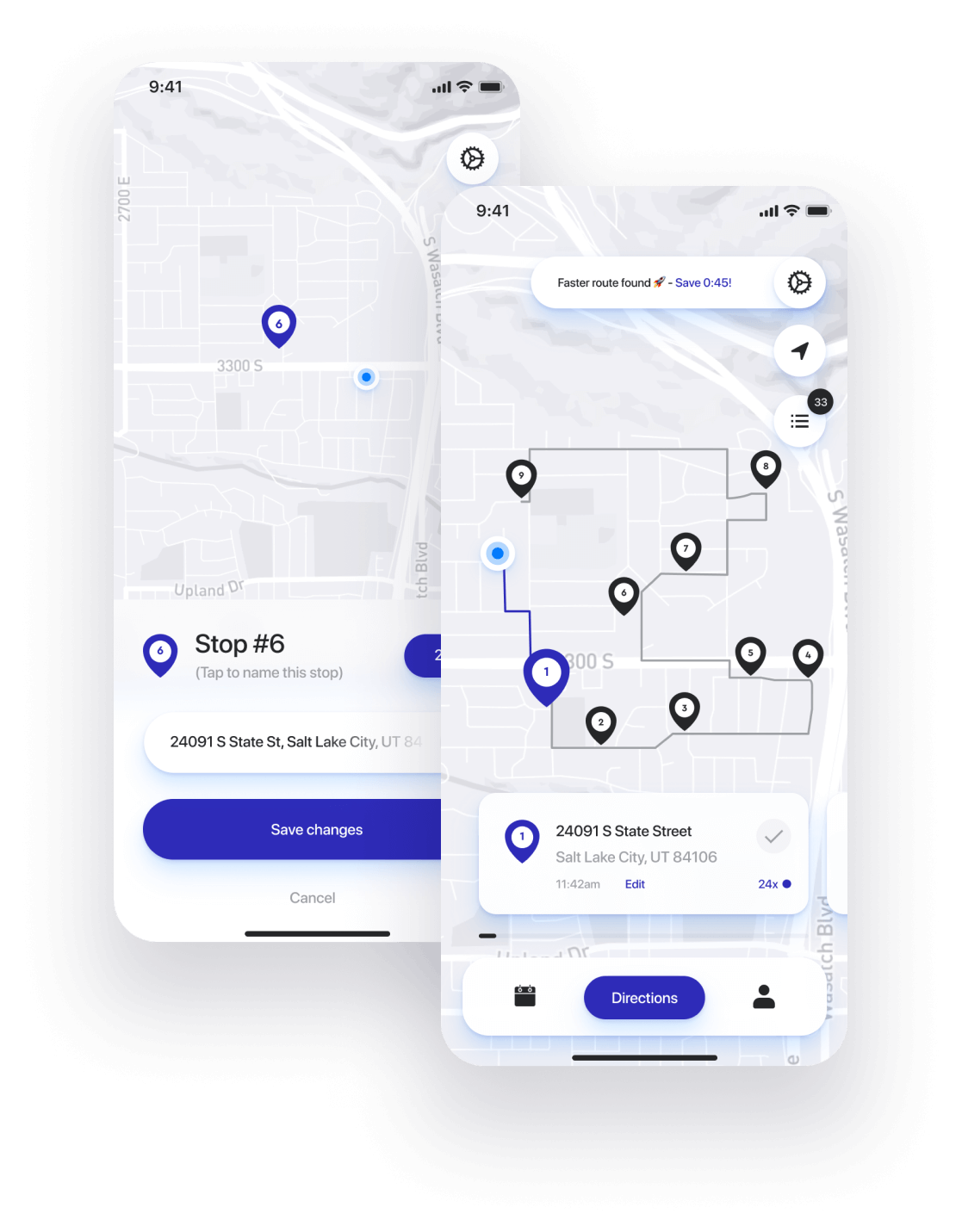
Check the street and map pin
Save the stop for today




Start with the job site
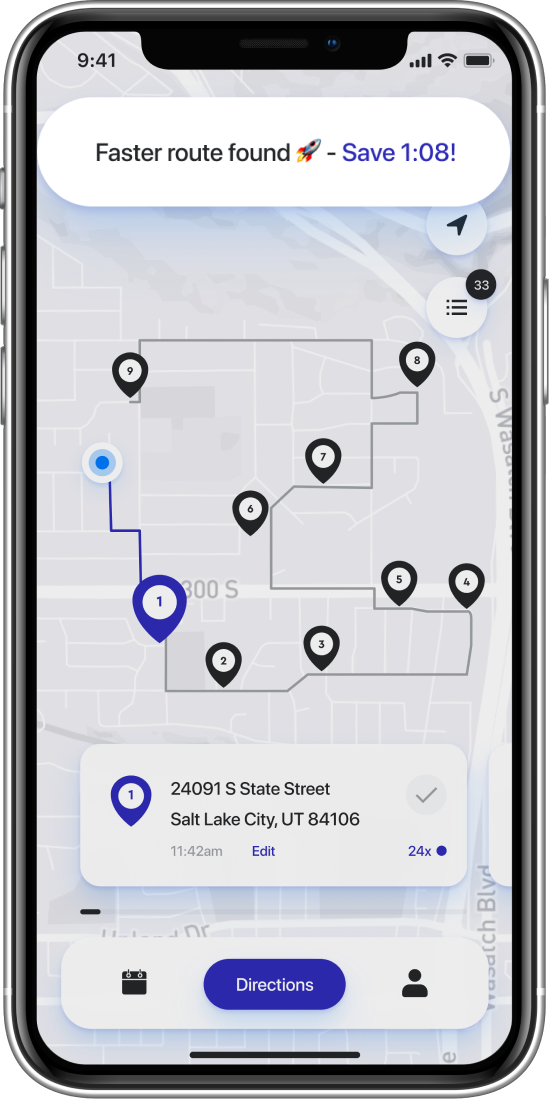
A work order may list a billing office and a service entrance. Choose the site you will visit, review the address Woope found and check the pin on the map. Keep the entrance note with the stop. Read the guide.



Three ways to enter an address
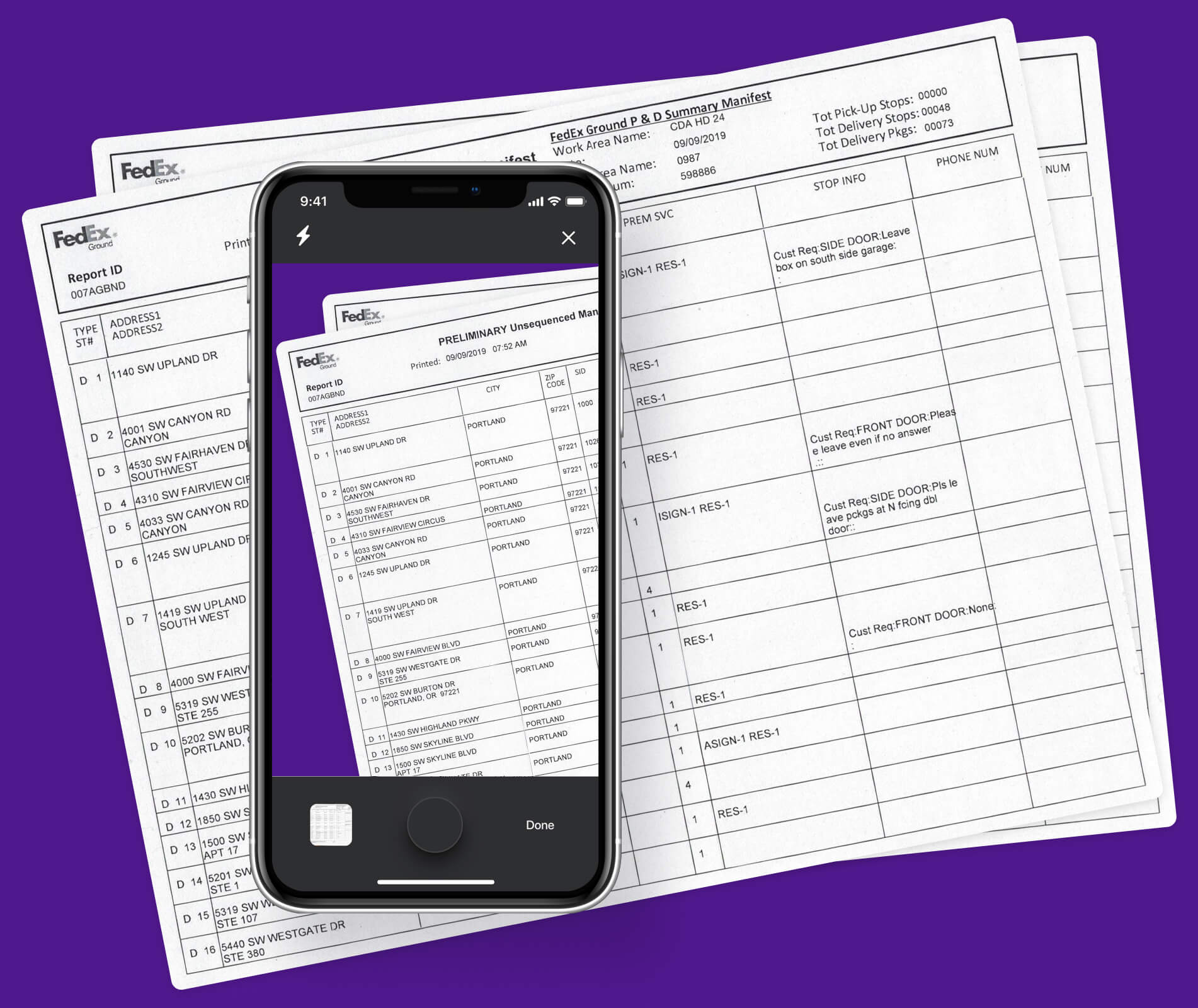
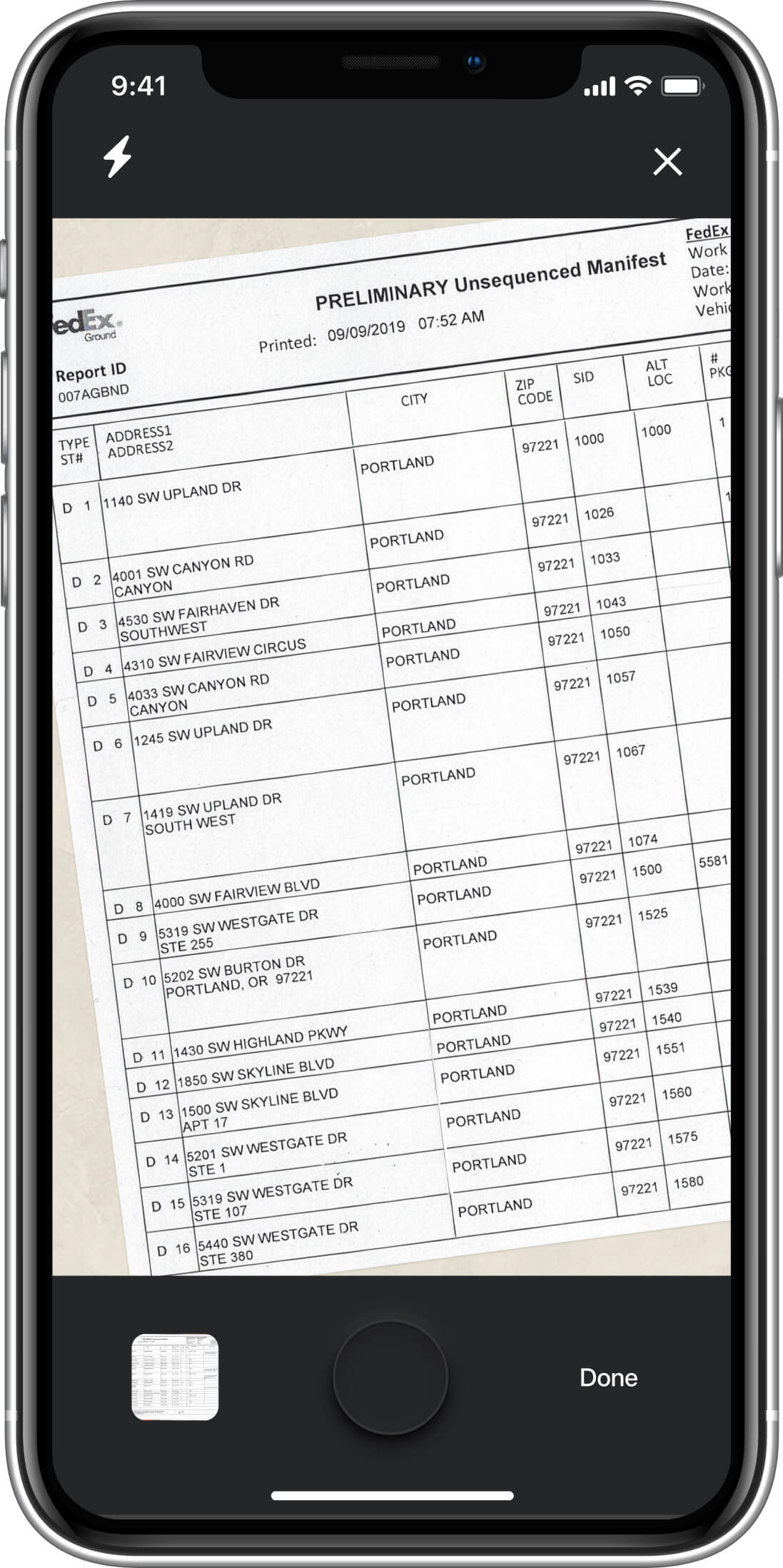
Read an address from a photo
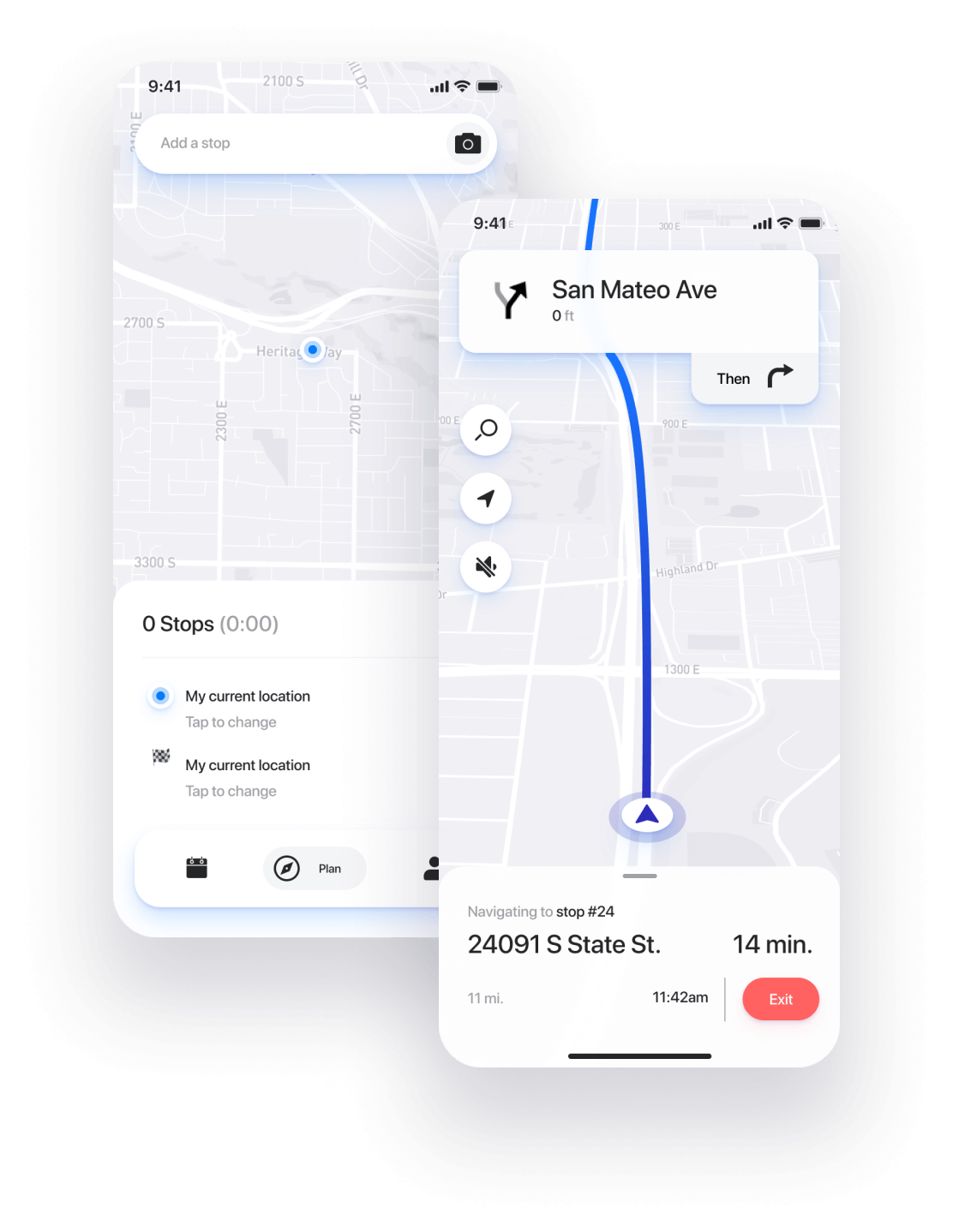
Photograph the address on a job sheet or select a photo. Review the recognized text and use it for an address search.

Say the address aloud
Dictate the street number, street name and town. Read the result back before searching for the stop.





Search or choose on the map
Type the address when you have it in writing. Check it against the property or choose the location on the map.




Addresses from a working day
Home service
The first home needs a hinge measured. Collect the matching part on the way to the second call.
Flower shops
Drop off a birthday bouquet, take the table flowers to a café and get back to the shop by 10:25.
On-site estimates
The fence owner is home at 11:15. Measure the kitchen and check the deck before that appointment.
Common questions
Entering and checking client addresses.
Can I use a photo of a work order?
Yes. Take a photo or choose one from the library. Check the recognized address, search for it and select the matching stop.
What if the document has two addresses?
Choose the service or delivery location you intend to visit. Check the result against the work order before saving.
Can I correct a spoken address?
Review the text after dictation. Edit a wrong number or street name before you run the address search.
Where do I put entrance instructions?
Keep the street address as the stop location. Add the entrance or parking detail to the stop note.